PS5 Controller Touchpad Not Working? Separate Clicks from Gestures
Updated · Written by Javed Niamat
Check a DualSense touchpad click, swipe and game binding separately on PS5 and PC, without mistaking missing browser support for broken hardware.
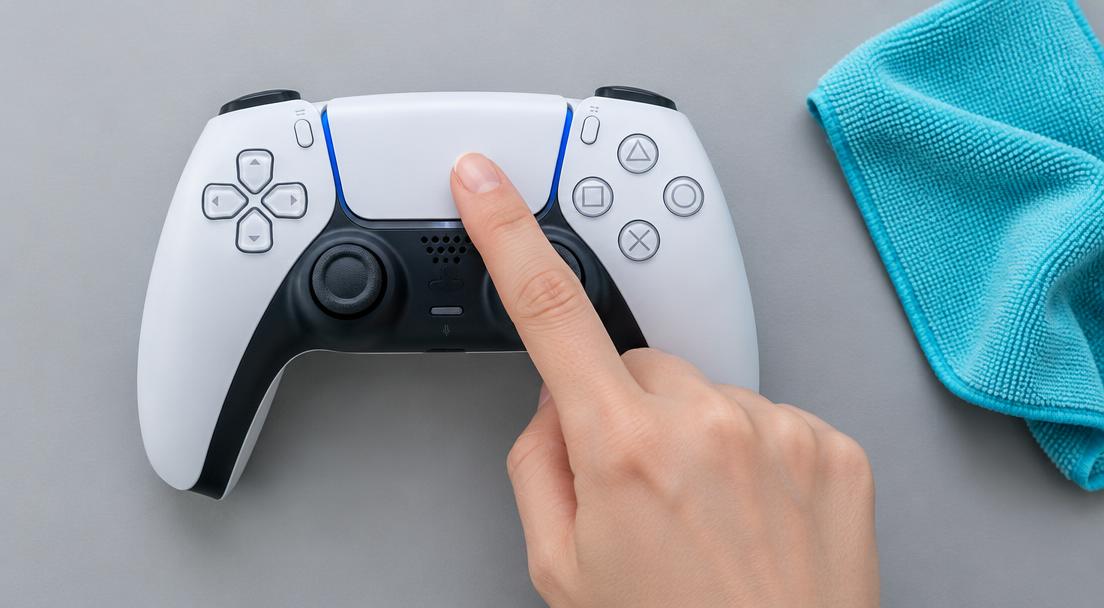
The quick answer: a click and a swipe are different inputs
If your PS5 controller touchpad is not working, first ask what stopped: pressing it down, moving a finger across it, or opening a particular game's menu. The DualSense touchpad combines a physical click with a touch surface. A game can use one without using the other. Try the action in a game that actually documents touchpad support before resetting anything. A silent swipe in a game that only uses the click is not evidence of a damaged controller.
On PS5, compare the action the game expects
Open the affected game's controls and look for its touchpad action. Note your custom layout before restoring a default for comparison. If the game asks for a press, click gently and release completely; if it asks for a swipe, move one finger across the surface without pressing it down. Compare with another game that supports that same action. A touchpad that opens a map in one title but does nothing in another calls for a binding or game-support check first, not a replacement part.
What you can check in GPad Checker
Connect a single DualSense with a known data-capable cable, open the PS5 controller test and press a face button while the page is visible. Then click the touchpad once and release. Watch for a responding button indicator if the browser exposes that click. Standard gamepad mapping does not include a dedicated touchpad control, so the extra button may be missing or labelled differently depending on the setup. GPad Checker does not visualize finger coordinates, multi-touch or swipes. An absent touchpad indicator cannot diagnose the touch sensor.
On PC, inspect the game's input path
Sony notes that DualSense feature support depends on the game and device. A connected controller is not a promise of touchpad gestures in every Windows game. Check the game's supported-controller instructions and whether it expects native DualSense input or a translated layout. If you use Steam Input, inspect the per-game touchpad binding: a surface can be configured for mouse movement, buttons or other actions. Those keyboard or mouse outputs are separate from the gamepad indicators shown by this site.
Compare profiles without losing your setup
Save or note your current controller layout. Try the game's default supported setup, keeping optional remapping tools closed for that comparison. Then compare your usual profile, changing only one input layer. Do not assume Steam Input must always be disabled; a game may need its translation. If the touchpad starts working after a profile change, record which action was restored. That is more useful than installing several new drivers without knowing what the game expects.
Inspect gently and use official software
Turn the controller off and disconnect its cable before inspecting the surface for damage or residue. Follow Sony's care instructions for your model; do not put liquid into the edges, lift the panel or press harder to force a response. Check current DualSense device software through PS5 or the official PlayStation Accessories app on a compatible PC. If Sony's troubleshooting instructions call for a reset, follow those instructions and reconnect as directed. Updating or resetting is not a repair for a cracked surface.
When to ask PlayStation support
If the same documented click or gesture fails in multiple supported console games after checking profiles and official troubleshooting, contact support. Explain whether clicks, touches or both fail, which games you compared and whether the behavior changes on PC. Include any drop or spill, but do not open the shell just to confirm a theory. Consistent observations narrow the problem; they still do not identify an internal component from outside the controller.
Does a working click prove the touchpad is healthy?
No. A working click confirms that one input path responded in that test; it does not certify the touch surface, every gesture or every supported game. Equally, a swipe missing from a browser gamepad display is expected when that display does not read touch coordinates. Keep the click test and the gesture test separate, and judge each with software that actually supports it.