PS5 Controller Buttons Not Working? Find Where the Input Stops
Updated · Written by Javed Niamat
Check a missed DualSense button in the browser, a game and on PS5 before deciding whether it needs repair.
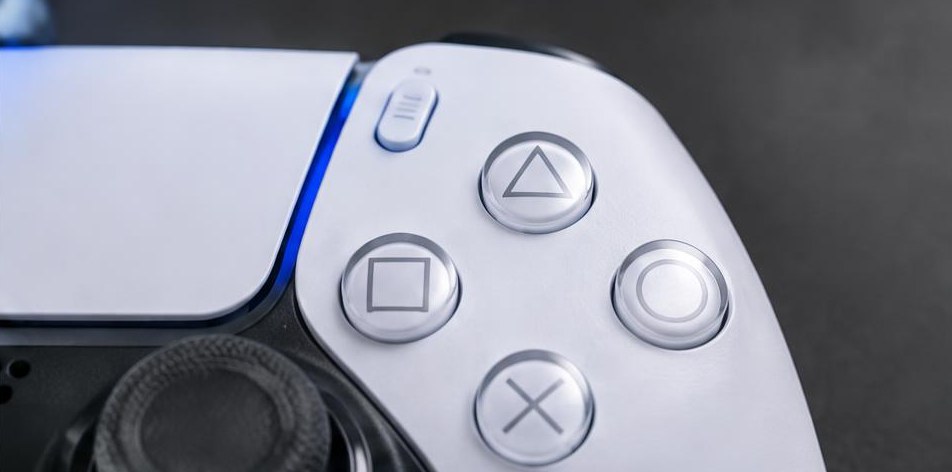
Start with the button, not a replacement part
You press Cross and nothing happens. It is tempting to blame the controller straight away, but a changed game profile or connection can look much the same. Write down which button fails and where it fails. One missed input is a useful clue, not a diagnosis. If the controller has had a spill, gets unusually hot or has visible damage, stop testing and contact support instead.
Give the controller a simple connection
Connect the DualSense directly to your computer with a USB-C cable that you know carries data. Close remapping software for this comparison, open GPad Checker's PS5 test and press a face button with the tab visible. If nothing appears, work through the controller-not-detected guide first. A charging light does not tell you whether button data reaches the computer.
Check one press and one release
Press the suspect button on its own, then let it go fully. Repeat slowly and compare with a working button. Does the input never appear, appear only sometimes, or remain active after release? With a standard browser mapping, Cross, Circle, Square and Triangle may be labelled A, B, X and Y. Watch the input that changes rather than treating unfamiliar labels as a fault.
Compare with the game that caused the problem
Restore that game's default controller layout, noting your custom settings first. Try another compatible game or the PS5 menus. A button that works here but fails in only one game points you toward that game's controls or input handling; it does not prove every part of the controller is healthy. If a system button is missing only in the browser, your operating system may be intercepting it.
Use Sony's update and reset steps
Check Sony's instructions for updating DualSense device software. If you need to reset it, turn off the PS5, disconnect the controller's cable and use the recessed reset button on the back for at least five seconds. Reconnect to the console with a data-capable USB cable and press PS. A reset can address a connection problem; it cannot fix a cracked button or damaged contact.
Know when the checks are enough
If the same button repeatedly fails on a compatible computer and on the console while other buttons work, save those observations for PlayStation support or a repair shop. Do not pour cleaning fluid into the button gap or start opening the controller just to confirm a theory. Ask about service options for your model and region. The tester can show missed inputs, but it cannot see the part underneath the button.