PS5 Controller Mic Not Working: Mute Button, Settings and Hardware Checks
Updated · Written by Javed Niamat
DualSense microphone silent? Check the orange mute light, PS5 input settings and app permissions in order before assuming the microphone is broken.
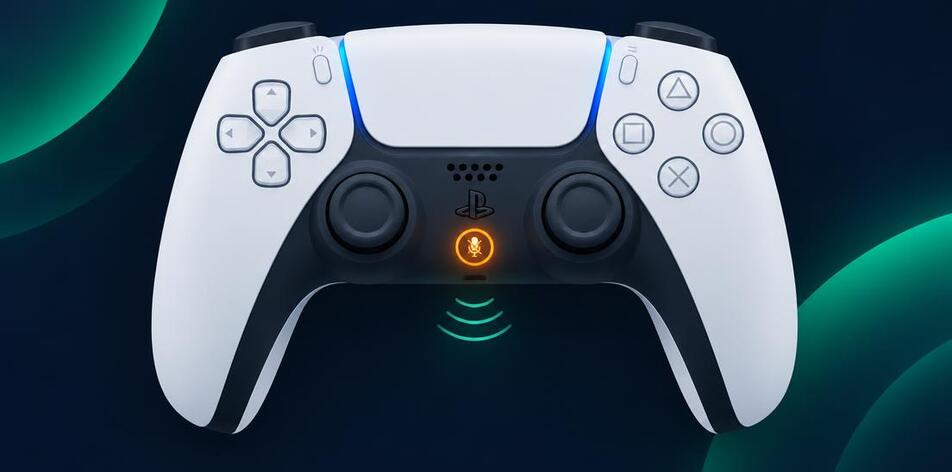
Start with the mute button under the PS button
The DualSense has a dedicated mute button below the PlayStation button, and it is easy to press by accident while adjusting your grip. When the microphone is muted, a small orange light glows on the button itself. Press it once and watch the light: orange means muted, no light means the mic is live. This single check solves a surprising share of silent-microphone reports, so do it before touching any menu. If the light never changes no matter how many times you press, note that — it is useful information for the later steps.
Confirm the PS5 is listening to the right device
On the console, open Settings, then Sound, then Microphone, and look at Input Device. If a headset or another device is selected, the built-in DualSense microphone is ignored even though it works. Set the input device to the controller, then speak and watch the input level bar move. Also check Microphone Status When Logged In, which can be set to mute the mic automatically at sign-in. A moving level bar here means the console hears the microphone, and the remaining problem is almost always in the game or chat settings rather than the hardware.
Check the game and party chat separately
Some games have their own voice chat toggle, push-to-talk binding or input device selector that overrides the console setting. If the PS5 level bar moves but teammates cannot hear you, open the game's audio settings and confirm voice chat is enabled and set to the correct device. In party chat, check that you are not muted in the party itself. Testing one layer at a time — console, party, game — tells you exactly where the voice path breaks instead of guessing.
On PC, the mic is a separate audio device
When a DualSense connects to a PC over USB or Bluetooth, Windows can see its microphone and speaker as a separate audio device from the gamepad itself. PlayStation's own support notes that the built-in microphone and speaker work on PC, but the game or chat app must select them. Open your app's voice settings and look for an entry named like the controller or Wireless Controller. If the app is listening to your headset or webcam mic instead, the DualSense mic will appear dead even though it is working.
A quick way to hear whether the mic hardware responds
On the PS5, the Sound settings input level bar is the simplest hardware check: blow gently across the small microphone opening near the bottom of the controller and watch for movement. On a PC, open the system's sound input settings and do the same. If the level reacts to sound, the microphone element works and the issue is software routing. If nothing reacts on any device with the mic unmuted, the opening may be blocked by dust or debris — inspect it and clean gently with a dry, soft brush rather than poking anything inside.
Update the controller software before blaming hardware
Sony releases device software updates for the DualSense, and audio behavior can change with them. On a PS5, updates are offered when you connect the controller; on a PC, Sony's PlayStation Accessories app handles the update over a USB cable. An update is a low-risk step worth doing before concluding the microphone has failed. Keep the controller connected and do not unplug it mid-update.
What a browser tester can and cannot tell you
GPad Checker reads gamepad buttons, sticks and triggers through the browser's Gamepad API. That API does not expose the DualSense microphone, so this site cannot test your mic directly — and no browser gamepad page can. What you can verify here is the mute button itself: it appears as a button press on a standard-mapping DualSense, so you can confirm the physical button registers. The microphone hardware check belongs in the console or operating system's sound settings, as described above.
When it is time to contact support
If the mic shows no input level on any device, the mute light behaves normally, the opening is clean and the software is current, the microphone or its internal connection may have failed. Write down the controller model, the devices you tested on, and what the input level bar did in each case. That record makes a warranty or repair conversation much faster than saying the mic just does not work.