Controller Not Working After Being Dropped? What to Check Before Repairing
Updated · Written by Javed Niamat
Dropped your Xbox, PS5 or Switch controller and now it won't turn on, connect or respond? Follow these safe checks to find what the fall actually damaged.
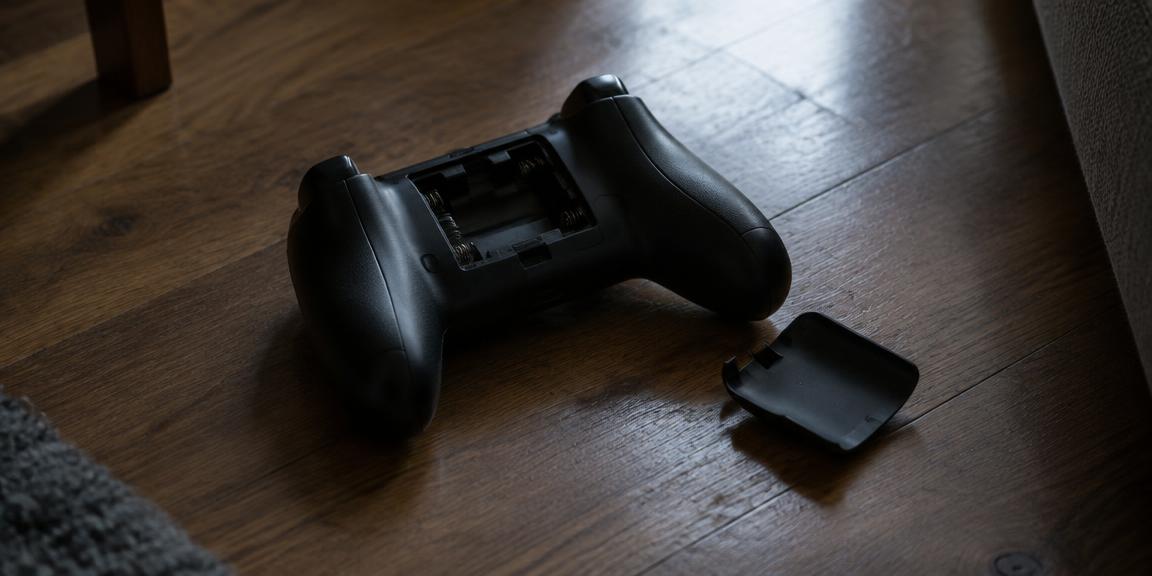
Start by finding out what stopped working
A drop can affect very different parts of a controller: the battery connection, the charging port, a button, a trigger or a stick. Before you assume the worst, write down exactly what changed. Does it fail to power on at all, power on but not connect, connect but ignore one button, or feel physically different? Each answer points to a different check, and knowing it saves you from replacing a controller that only needs a battery reseated or a fresh pairing.
If it will not turn on
On an Xbox controller, take the battery cover off and check that the AA batteries or rechargeable pack are fully seated — a hard knock often pushes them out of contact. Try fresh batteries. On a DualSense or Switch Pro controller, plug it in with a known-good USB cable and leave it for a while before deciding it is dead. If an Xbox controller still shows no light, Microsoft's troubleshooting steps for a controller that will not turn on are the next stop.
If it turns on but will not connect
Falls can knock a controller out of its pairing or reset it. Connect it with a USB cable to the console or PC first: if it works wired but not wirelessly, the controller itself is responding and the wireless pairing needs redoing. On a DualSense, use the reset button on the back, then pair again over USB. On Xbox, re-pair with the sync button. If it does not work even when wired, try a second cable and a second port before suspecting the controller's own port.
Check the charging port carefully
If the controller landed on its top edge, the USB-C or micro-USB port may have taken the impact. Signs include a cable that only charges at a certain angle, a loose-feeling plug, or charging that starts and stops. Do not force a cable in or bend the port back. Our guide on telling a bad USB-C port from a bad cable walks through the safe checks in order.
Test every button, stick and trigger
Once the controller connects, open the tester on this site and press every input one at a time. Watch for a button that does not register, a trigger that no longer reaches full value, or a stick that now rests off centre. A fall can unseat a stick or crack a trigger spring, and those problems are easy to miss until you test each input deliberately. Note what fails so you can describe it clearly to support or a repair shop.
Listen and look for physical damage
Gently shake the controller near your ear. A rattle that was not there before can mean a loose screw, a broken clip or a detached part inside. Look for cracks along the seams, around the triggers and at the port. Visible damage plus a rattle is a good reason to stop using the controller and get it checked rather than continuing to play and risking further damage.
Rumble, battery and other things a drop can affect
If vibration stopped after the drop, or the battery suddenly drains much faster, the fall may have disturbed the rumble motors or the battery connection. Test vibration with the button on this page and compare battery life with what you got before. These symptoms are less obvious than a dead controller but worth recording for a warranty or repair claim.
Warranty and repair
Accidental damage is often not covered by a standard manufacturer warranty, but it is still worth contacting support with a clear list of what fails and what you tried. Avoid opening the controller yourself if you hope to use a warranty. A repair shop can usually replace ports, sticks and triggers, and your test results from this site give them a head start.