Controller Keeps Switching to Keyboard? Check Prompts and Input Bindings
Updated · Written by Javed Niamat
Find why a PC game alternates controller and keyboard prompts. Compare mouse movement, Steam Input bindings and mixed-input support without blaming the controller.
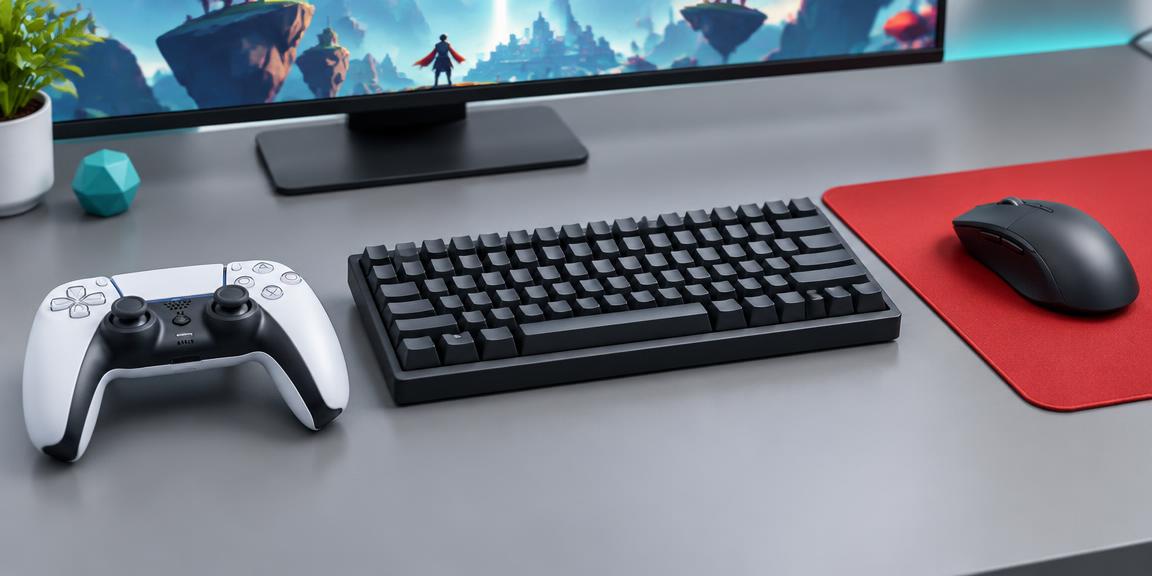
First, separate changing prompts from lost control
If your controller keeps switching to keyboard prompts, watch what changes besides the picture on screen. Can you still move and press buttons, or does the game stop responding to the controller? A changed prompt is not the same as a disconnection. Some games choose their button hints from recent input; their exact behavior is game-specific. A controller layout can also send keyboard or mouse commands intentionally. Start by noting whether the prompt changes after touching the mouse, moving a stick or pressing one particular control.
Make a quiet, one-input comparison
Choose a safe practice area or menu. Put the mouse on a stable surface and keep your hands off the keyboard and laptop touchpad. Use only the controller, then deliberately move the mouse once and return to the controller. Compare the prompts and whether the actions remain usable. If another input device is visibly sending unwanted movement or keypresses, investigate that device separately. Do not assume every prompt change means a hidden keyboard fault, and do not uninstall drivers just to make this comparison.
Look for keyboard or mouse commands in the controller layout
Steam Input can translate physical controller input into gamepad, keyboard or mouse commands. That flexibility explains why holding a controller does not guarantee the game receives only gamepad signals. Open the affected game's layout and inspect the specific control that triggers the prompt change. A stick might send WASD keys, a touchpad might move the mouse, or a supported gyro binding might emulate mouse aiming. Save the current layout and compare a suitable gamepad-oriented default if the game supports it. Review action layers and extra commands rather than changing every binding at once.
Mixed mouse and gamepad input needs game support
Valve's developer guidance explicitly notes that mouse emulation alongside gamepad input depends on the game accepting simultaneous inputs. A layout can therefore work well in one title but cause changing hints or awkward transitions in another. Check the game's controller documentation and its own input settings. If it offers a supported option to keep a particular prompt style, that can address the visual symptom; it does not alter every binding. There is no universal Windows switch that makes all games handle mixed input identically.
Keep desktop behavior separate from the game's layout
A controller moving the desktop pointer before launch is a different observation from a game showing keyboard hints. If you use a desktop controller configuration, inspect that as well as the per-game layout, but do not assume the two are identical. Make sure the game has focus and compare launching it through the input setup it supports. Temporarily close optional remappers for a baseline, then restore the intended setup one tool at a time. Preserve your profiles so this remains a reversible comparison, not a permanent loss of settings.
Use the browser check for the right question
Open GPad Checker with one controller connected and press a button to activate its display. Observe whether the controller remains detected and whether ordinary buttons and sticks respond. This establishes the gamepad state available to the browser at that moment. It does not inspect native-game prompts, log keyboard events or read Steam's complete configuration. A normal display can coexist with a controller binding that sends mouse commands elsewhere. If the browser actually loses the device too, follow the connection checklist; that is a different problem from changing icons.
A skipped menu item is a separate symptom
If one short tap triggers two actions, use the controller double-input guide rather than treating this page as the same diagnosis. Here the useful comparison is which input changes the prompt and whether control survives that change. For a game-specific issue, report the game version, controller, connection, selected layout and the smallest action that reproduces it. Mention whether a plain supported layout behaves differently. Those details let support investigate the input policy without guessing that your controller needs repair.
Can I keep mouse aiming and controller buttons?
Sometimes, but the game must accept that combination and the layout must deliver the intended commands. Valve documents this support requirement for mouse emulation alongside gamepad input. If your preferred mixed layout causes trouble, compare a pure gamepad layout, then decide whether its trade-off suits you. Do not disable an accessibility setup permanently just to silence a prompt. The goal is dependable controls in your game; a stable icon is helpful, but it is not a hardware health test.