How to Use Xbox Elite Controller Back Buttons on Steam
Updated · Written by Javed Niamat
Set up Xbox Elite paddles for Steam games, distinguish onboard button copies from independent inputs, and check the active profile before changing software.
The quick answer: decide what you want the paddles to do
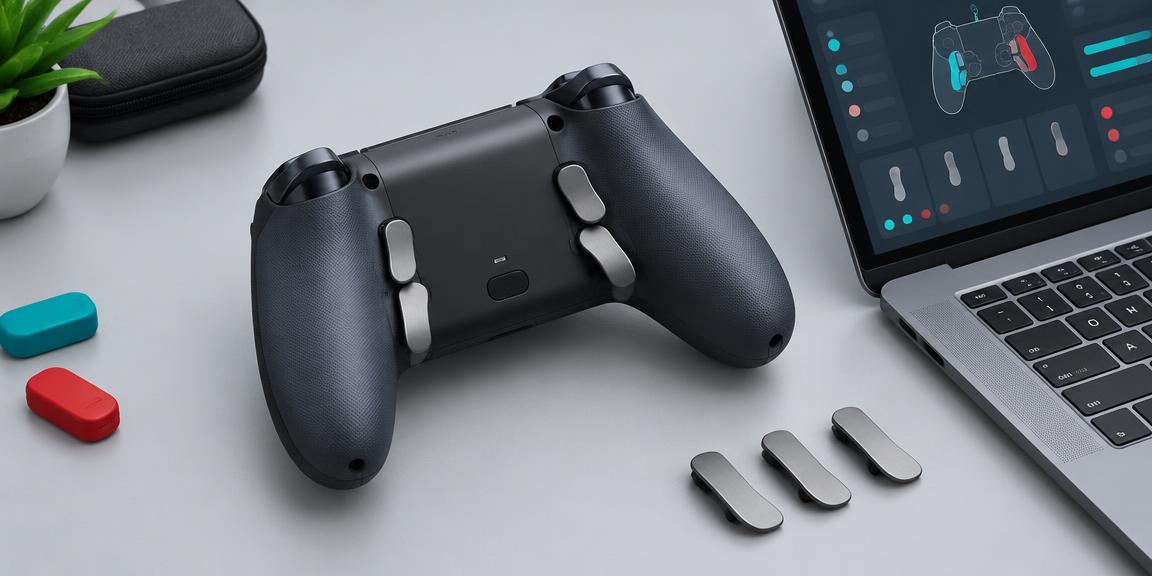
To use Xbox Elite controller back buttons on Steam, first decide whether you want a paddle to copy an existing button or act as a separately bindable control. Those are different jobs. Xbox Accessories provides button mapping and onboard profiles for the Elite Series 2. Independent paddle bindings in Steam depend on what your controller, connection and software expose. A rear paddle that already sends A is not necessarily missing: it may be doing exactly what its saved profile tells it to do.
Check the Elite model and the active profile
Read the model name before following a setup guide. The original Elite, Elite Series 2 and third-party controllers with rear buttons are not interchangeable. Microsoft's Series 2 product information describes three custom profiles plus a default profile stored on the controller. Open the official Xbox Accessories app using a supported connection and inspect the current button assignments. Note the active profile and save your preferred layout before experimenting. A game-specific Steam layout does not tell you which onboard profile you selected.
For a simple button copy, use onboard mapping
Suppose you want to jump without lifting your thumb from the stick. Assign a rear paddle to the ordinary button your game uses for jump, using the supported mapping options for your model. Select that profile, then try a short press in a safe practice area. In this arrangement, the game receives the existing button action rather than a brand-new control. Check the assignment by pressing the face button and paddle separately. Do not judge success by whether the game shows a special paddle icon; many games display the ordinary action's prompt.
For independent commands, check what Steam actually lists
In Steam's controller settings and the affected game's controller layout, inspect the available inputs for the detected device. Labels and menu placement can change with the client version. If Steam exposes separate paddle controls in your setup, assign one simple command and test it before adding layers or complex actions. If it lists only ordinary gamepad controls, stop treating an absent paddle slot as a broken switch. Record your operating system, connection, controller firmware and Steam version. Windows, Linux and Steam Link can use different input paths; a guide for one is not proof of support on another.
Avoid old firmware shortcuts and overlapping assignments
Search results include older reports about specific Elite firmware versions and third-party remappers. They describe those authors' setups at that time, not a universal current fix. Do not downgrade firmware merely to make a configuration screenshot match. Before changing an onboard assignment, preserve it and check the instructions for the input tool you actually use. If you choose an optional remapper, compare it with your existing Steam setup one layer at a time. An onboard button copy and a software command can interact; adding more software without checking the first assignment makes the result harder to understand.
What GPad Checker can show—and what it cannot
Connect one controller, open the Xbox controller test and activate it with a button press while the page is visible. Press the paddle on its own, release it fully and compare with its assigned face button. If both activate the same ordinary indicator, this browser path receives that button action. GPad Checker does not identify which physical paddle produced it, configure onboard profiles or guarantee four independent paddle slots. A command mapped to a keyboard key may not appear in the gamepad display at all. Use Steam's layout view and the target game to verify that kind of binding.
If a paddle still does nothing
Check the active profile, assignment and normal seating of the removable paddle according to the manufacturer's instructions. Do not force a component or open the controller to investigate an absent Steam control. Compare another paddle with the same simple assignment and repeat in a compatible game. If the problem follows one physical paddle across supported setups, contact Xbox support with those observations. If onboard mapping works but independent Steam binding is unavailable, you have found a capability or configuration question—not established a hardware fault.
Do Elite paddles always provide four extra buttons?
Not through every input interface. A physical rear control can copy an existing button, while independent binding requires the software path to expose that control separately. The standard browser gamepad layout is not a promise of four extra Elite inputs. For the most reliable result, define the action you need, confirm the current profile and test it in the game you intend to play. A working ordinary-button copy may already solve your problem without another driver or a risky firmware change.