Controller Turbo Button: What It Does and How to Stop Repeated Inputs
Updated · Written by Javed Niamat
Learn how turbo rapid-fire differs from a macro or double input, check a repeating button safely and find your controller's model-specific disable steps.
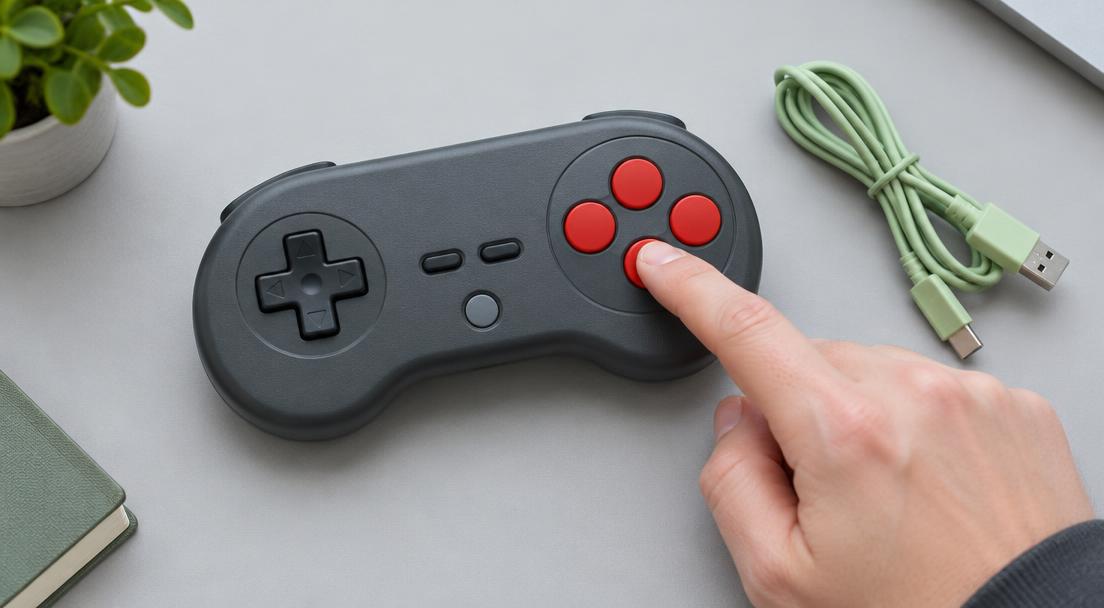
What does a turbo button do?
A controller turbo button enables repeated presses for a supported control instead of sending one continuous held input. For example, holding an assigned face button can produce a series of press-and-release actions. The exact behavior depends on the controller and its active mode. Some models also have an automatic repeat or hold function that continues after you let go; others do not. Turbo is not a universal feature of every Xbox, PlayStation or Switch controller, and there is no single button combination that enables it on all pads.
Turbo, macros and menu repeat are not the same
Turbo usually repeats one assigned input. A macro can play a sequence of different actions, depending on the supported software or hardware. A menu may also repeat navigation normally when you hold a direction, even with no turbo setting enabled. Finally, duplicate input paths can make one tap reach the game twice. Start with a brief press and complete release, then compare a deliberate hold. That distinction helps you avoid treating ordinary menu behavior as a broken button.
Find the manual for your exact model
Look at the model name on the controller rather than following a shortcut for a similar-looking pad. Use the manufacturer's manual to check which controls support turbo, whether speed is adjustable, how the indicator behaves and how assignments are cleared. For example, 8BitDo publishes model-specific manuals and software on its official support site. A Pro 2 instruction is not automatically correct for every 8BitDo controller, platform mode or revision. Do not press random combinations while a game is running.
Compare normal and turbo behavior in the tester
Connect one controller and open GPad Checker with the tab visible. With turbo disabled according to its manual, briefly press the suspect button and release, then hold it and release. If you intentionally enable supported turbo, repeat that same comparison. You may see the indicator alternate while the button is held. The browser display samples state rather than logging every electrical report, so rapid pulses can be missed or appear steady. This visual check cannot certify the manufacturer's repeat rate.
If it keeps repeating after you let go
First check for a documented automatic-turbo or hold assignment and clear it using the manual. Review the active controller profile and any remapping application for repeat commands as well. Save your preferred layout before changing it. Reconnect only where the manufacturer's instructions call for it; do not assume unplugging always clears a stored assignment. Once the repeat setting is removed, compare a short press again in both the tester and the affected game.
The browser can miss a software-bound command
Steam Input can map a physical control to keyboard or mouse commands instead of ordinary gamepad output. If the game repeats an action but the gamepad indicator looks normal, inspect the command assigned to that control, including extra actions or repeat options where available. Keep other optional remappers closed during a comparison and change one profile setting at a time. A normal gamepad display does not rule out repeating keyboard events delivered through a different path.
Check game rules before using rapid fire
Turbo is an input automation feature, not a guaranteed allowed shortcut. A game's competitive rules, a tournament organizer or an online service may restrict automated inputs. Check the rules that apply to your activity before enabling it, even when the controller ships with the feature. Do not use this guide to bypass detection or gain an unfair advantage. The goal here is understanding and troubleshooting a setting, including turning off repeat behavior you did not intend.
When repetition needs further investigation
If a brief tap still produces repeated actions after supported turbo settings and optional remappers are removed, compare another compatible game with default bindings. Note whether the browser input releases normally and whether the symptom affects one control or several. That record helps separate a configuration problem from a possible physical fault without guessing at a switch inside the shell. Repeated actions alone do not justify a replacement controller; ask the manufacturer for model-specific help with the comparisons you made.