Xbox Controller Firmware Rollback: When the Official Revert Option Fits
Updated · Written by Javed Niamat
Check eligibility for an Xbox controller firmware rollback after Bluetooth problems, use the official Xbox Accessories flow and know when to stop.
The short answer: rollback is a narrow option
Xbox controller firmware rollback is not routine maintenance or a general repair. Xbox's official reversion guidance addresses Bluetooth connectivity or performance problems with some non-Xbox devices after a firmware update. It says to revert only when you have frequent connection problems with non-Xbox devices, and warns that some older controllers may not show the option. If your complaint is a sticky button, a charging problem or a low score in a tester, that guidance does not establish a reason to downgrade.
Record what changed before blaming the update
Write down your controller model, the affected computer or phone, the connection type and when the problem began. If available, note the firmware version shown by the official app. An issue noticed after an update is a timing clue, not proof of cause. Describe whether Bluetooth disconnects repeatedly, pairing fails or performance changes only in one app. This article concerns the official post-update reversion option; ordinary ongoing disconnections belong in the connection troubleshooting guide.
Compare a supported connection first
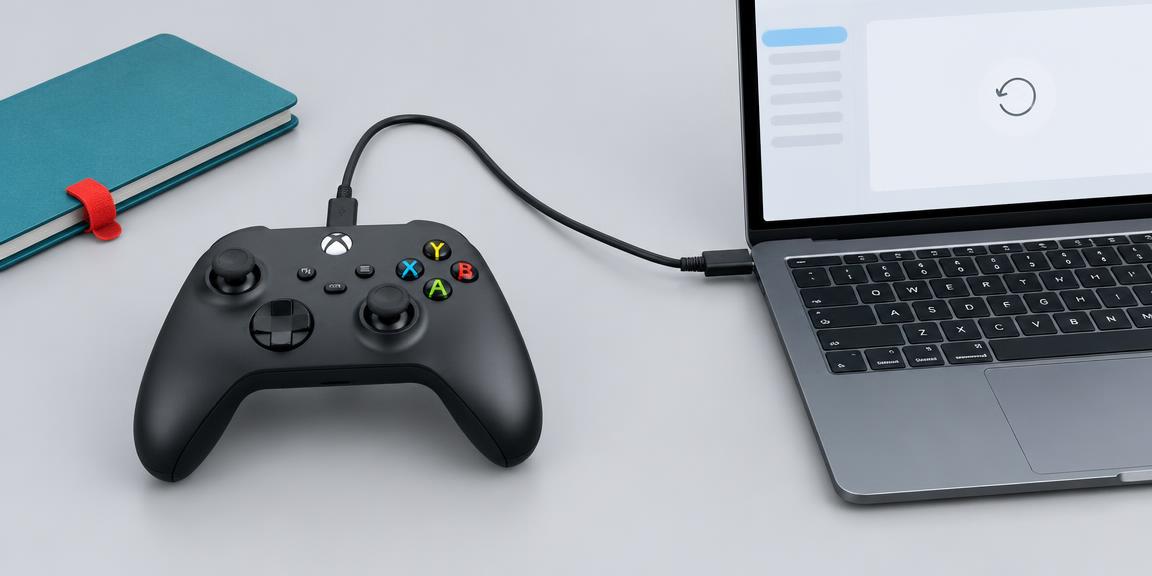
Where your controller and device support it, compare a direct USB data connection with the affected Bluetooth path. Keep the game or app and controller profile the same. Check that ordinary input works and record whether the symptom returns over Bluetooth. Do not treat wired success as proof that firmware is faulty: the wireless path also involves the host's Bluetooth software and hardware. If the same issue occurs before an update or across every connection, ask support about that broader symptom rather than assuming rollback is the next step.
Open the official reversion flow on Xbox
Xbox Support currently gives this console path: press the Xbox button, then go to Profile & system > Xbox Support > Get help > Help topics > Hardware & networking > Controllers. Open the topic named My Xbox controller has connection issues after the last update. Select Check your controller's firmware to open the reversion screen in Xbox Accessories, then follow the app's instructions. If your console shows different wording, use the linked official support article for its current flow. Do not substitute a third-party firmware file.
On Windows, start from the Xbox Support page
The same official article provides a Check your controller's firmware link that can open the reversion flow on Windows. Xbox says the Xbox Accessories app for Windows must be installed for that link to work. Use the link on the support page and let the official app check your connected controller. Follow its connection and completion prompts, keeping power and the connection stable during the operation. This website does not run that process, select a firmware version or write software to your controller.
If no revert option appears, do not bypass it
Some older controller models may not have the option, according to Xbox. An absent option is not an invitation to use hidden commands, unofficial flashers or downloaded firmware packages. Contact Xbox support with your model, current version if known and the affected non-Xbox device. Do not follow a years-old post that names a firmware version as universally best. A rollback may change behavior or available features, so the official eligibility check and your actual symptom matter more than another person's version number.
Check the outcome on the device that had the problem
Once the official app finishes, follow any reconnection instructions and repeat the original Bluetooth task on the affected host. Keep the comparison conditions steady and note whether frequent disconnects or the specific performance problem remain. You can use GPad Checker to confirm ordinary inputs reach a compatible browser, but it cannot read the controller's firmware version, audit an update or certify long-term wireless stability. A responsive button display immediately afterward is useful context, not proof that every Bluetooth issue has been resolved.
Will rollback fix drift or enable Steam paddles?
The official guidance does not promise either result. Firmware reversion here targets a particular post-update Bluetooth problem with non-Xbox devices. Stick drift, independent paddle exposure and game-specific mappings are different questions. If the eligible reversion does not improve the original symptom, stop cycling versions and return to support with the before-and-after observations. A narrow, documented comparison is safer and more informative than treating downgrade as a universal controller fix.