PS5 Controller Left Stick Drift: Why the Left Stick Goes First and What to Do
Updated · Written by Javed Niamat
Is your PS5 controller's left stick drifting while the right is fine? Learn why the left stick wears first, how to confirm it, and which fixes are safe to try.
Why the left stick is usually the first to drift
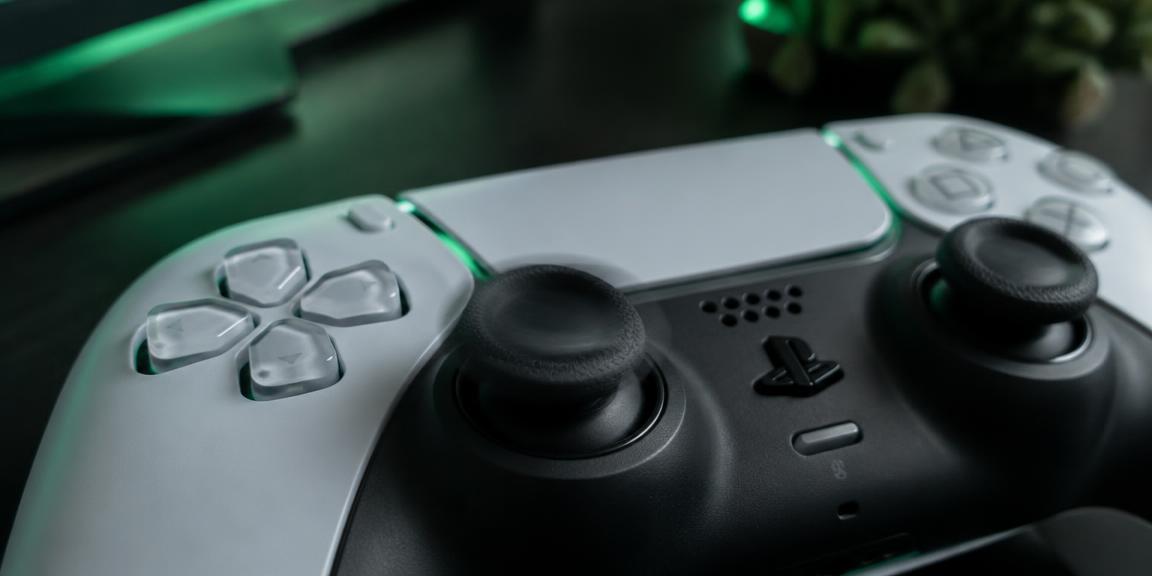
In most games the left stick does the walking: it is pushed almost constantly, often all the way to the edge, and held there for long stretches. The right stick moves the camera in shorter flicks. That difference in workload means the left stick's sensor and centering spring simply do more work over the same hours of play, so it is common for the left stick to start drifting while the right still feels perfect. It is not a sign that your controller was a bad unit — it is a sign of which stick you use most.
What left-stick drift looks like in a game
The classic signs are your character creeping forward or sideways with your thumb off the stick, menus scrolling on their own, or a slow, steady pull in one direction when you try to stand still. Some players notice it first as missed precision — a small push that overshoots — rather than full movement. If the problem only appears in one game, check that game's deadzone or sensitivity settings first, because a very small deadzone can make healthy wear visible.
Confirm it with the stick values, not just a feeling
Open the stick drift test on this site, connect the controller, and take your thumbs off both sticks. A resting left stick that sits clearly away from the centre while the right stays near zero confirms the left stick is the one wandering. Compare the two sticks directly: if both rest near the centre, the drift you saw in game is more likely a setting, a profile, or software remapping than worn hardware. Write the resting values down so you can tell later whether a fix actually helped.
Rule out the quick, reversible causes
Start with the steps that cannot do harm. Fully charge the controller, update its software on the PS5 or through Sony's PlayStation Accessories app on PC, and use the small reset button on the back of the DualSense before pairing again. On PC, close remapping tools such as Steam Input profiles or DS4Windows that may be adding their own offsets. Retest the resting values after each step so you know which one, if any, made a difference.
Cleaning: what helps and what to avoid
Dust and grime around the stick base can make the stick return to centre unevenly. With the controller off, rotate the stick in slow, full circles while gently brushing or blowing around its base, then test again. Avoid pouring liquids into the controller and avoid opening it while it is under warranty. Cleaning helps sometimes, but it does not repair a worn sensor, so treat it as a test rather than a cure.
Use a deadzone as a stopgap
Many PS5 and PC games let you raise the stick deadzone. A slightly larger deadzone tells the game to ignore small resting values, which can hide light drift without changing the hardware. Raise it just enough to stop the creeping — too much makes small movements feel unresponsive. If you need a large deadzone to stop the drift, the wear is significant and the stick will likely get worse.
Warranty, repair or a controller with replaceable sticks
If the left stick still drifts after charging, updating, resetting and cleaning, check whether your DualSense is still under warranty before doing anything else, and contact PlayStation support with your resting values and the steps you tried. If you are out of warranty, a repair shop can replace the stick module. Players who keep wearing out left sticks may prefer a DualSense Edge, which has user-replaceable stick modules, or a controller with Hall-effect sticks.
What this check can and cannot tell you
GPad Checker reads stick positions through the browser's Gamepad API, so it can show you whether the left stick rests off centre and how far. It cannot see inside the controller or tell you exactly which part has worn, and the browser may report slightly different numbers from a console. Use it to compare sticks, track drift over time and confirm whether a fix worked.