Controller Polling Rate Test: What the Numbers Really Tell You
Updated · Written by Javed Niamat
Understand controller polling rate in Hz, compare USB and Bluetooth fairly, and learn why a browser reading is not a hardware latency measurement.
Start with the question you actually want answered
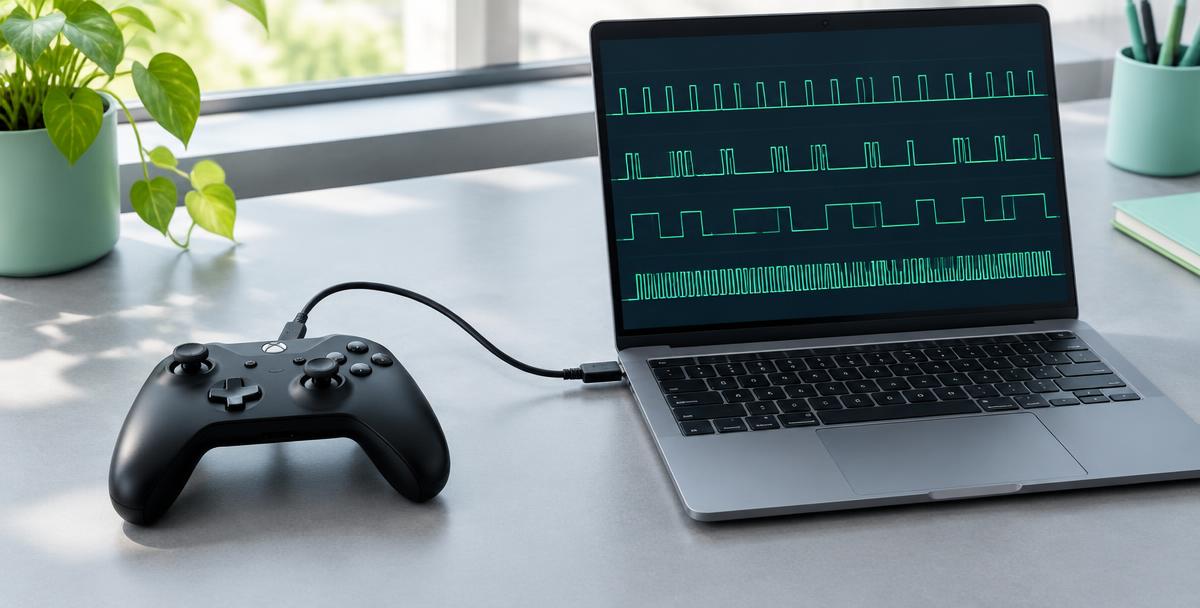
A controller advertised at 1,000 Hz sounds quicker than one advertised at 250 Hz. But if your aim feels delayed, that specification cannot tell you where the delay happens. A controller polling rate test examines how often input information becomes available through a particular measurement path. It does not automatically measure the time between moving your thumb and seeing the game respond. Before testing, decide whether you are checking a specification, comparing connections, or investigating a noticeable delay.
Hz and milliseconds: the useful distinction
Hertz means events per second. A nominal rate of 125 Hz corresponds to an 8 ms interval; 250 Hz to 4 ms; 500 Hz to 2 ms; and 1,000 Hz to 1 ms. These are intervals calculated as 1,000 divided by Hz, not promises about total input lag. The controller's internal scanning, connection, operating system, game and display all sit between your thumb and the finished frame. A shorter report interval can help one part of that chain without fixing the others.
Why browser results need a warning label
A web tester reads the gamepad state exposed by the browser. That is not direct access to every USB report. Many visualizers sample during requestAnimationFrame, whose cadence generally follows the display refresh rate and can pause in background tabs. A 60 Hz screen therefore cannot show 1,000 separate visual updates each second. Changes in the displayed stick values can also reflect how you moved the stick, rather than the device's report schedule. Never interpret a count of visible updates as a certified hardware polling rate.
A timestamp is not a universal solution
The Gamepad API defines a timestamp for the last state update, but support and behavior must be verified in the browser you use. A property being present in documentation does not establish that your device supplies useful timing information. Repeated state values, missing timing information and browser scheduling all complicate an estimate. GPad Checker currently displays buttons, sticks and triggers; it does not provide a hardware polling-rate analyzer or an end-to-end latency score. Use it to confirm input reaches the browser, not to certify an advertised Hz figure.
Compare USB and Bluetooth without changing everything
Keep the same controller, computer, firmware, measurement tool and input movement for both runs. First confirm ordinary inputs with a known data-capable USB cable connected directly to the computer. For the wireless run, check that the controller is connected, not merely saved in Bluetooth settings. Record which connection you used and repeat each run under similar conditions. Close unnecessary remappers for a baseline. USB, Bluetooth and proprietary wireless adapters are different paths; do not assume they share a controller's advertised maximum rate.
When you need a device-level measurement
A native tool can sample a supported Windows input interface without relying on a browser animation loop. XInputTest, for example, is designed around XInput measurements, so its scope matters if your device uses another interface. Even native state sampling is not automatically a count of every physical USB packet. For a purchase decision, look for independent tests that explain the device model, firmware, connection and measurement method. Hardware packet capture or a properly described input-to-display test answers a different question from a browser visualizer.
If the game still feels slow
Check whether the delay happens in one game or across several. Compare a simple game profile, review frame-rate stability and test the display's supported low-latency mode. Keep notes before changing settings so you can undo an unhelpful adjustment. Do not install an unknown driver or overclock a USB device just to chase a higher number. A useful result is a repeatable improvement in your actual setup, not a screenshot of the largest Hz value.
Does a higher polling rate fix stick drift?
No. Reporting an unwanted stick position more often does not move the stick back to center. Use a resting-position check for that symptom and compare it with the affected game's behavior. Polling rate, deadzone and input latency describe different things. Keeping them separate makes it much easier to choose the next check—and much harder to be misled by a single impressive-looking score.